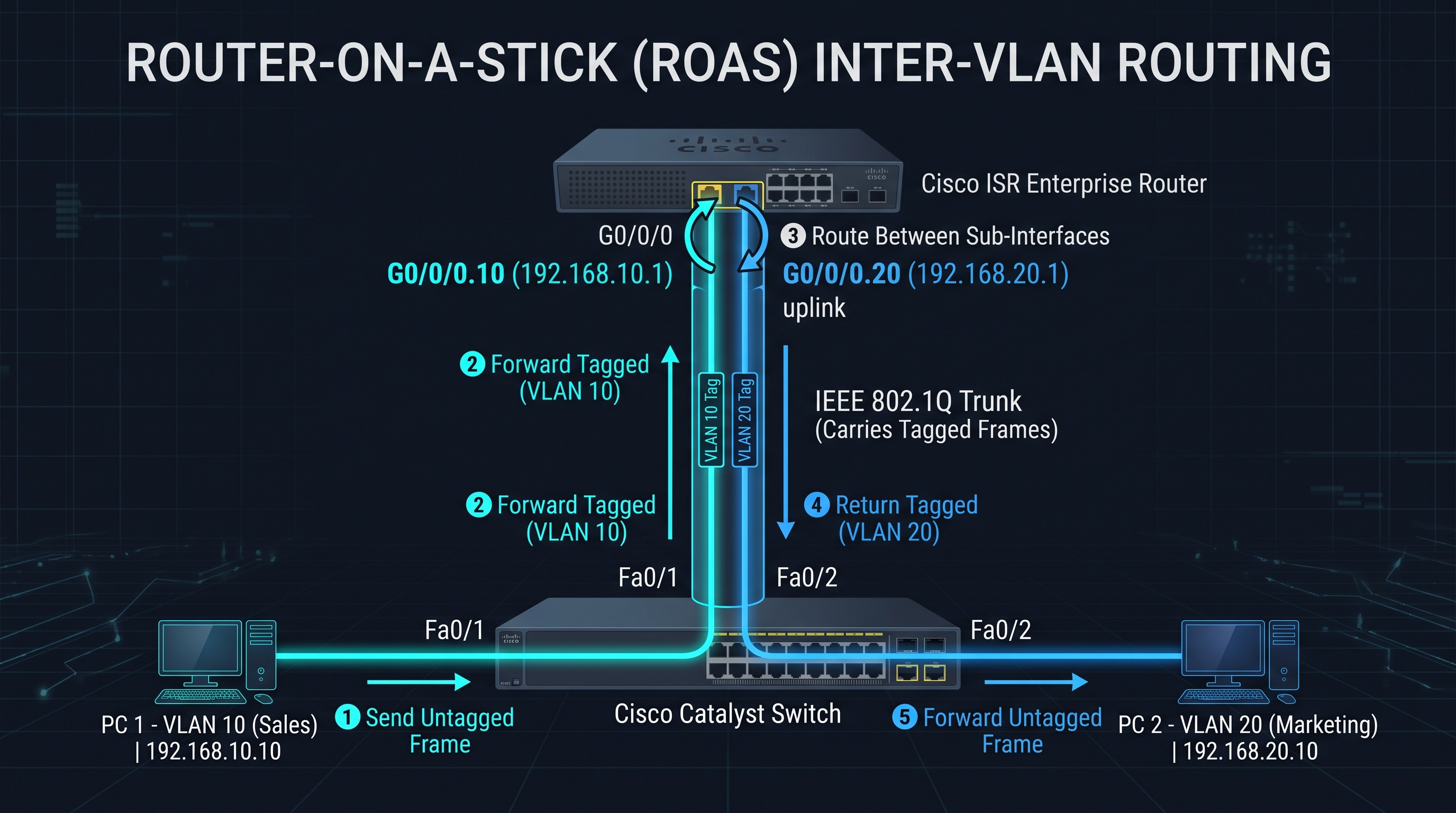
A Router-on-a-Stick (ROAS) is an Inter-VLAN routing method where a single physical router interface routes traffic between multiple Virtual Local Area Networks (VLANs) across a single physical 802.1Q trunk link.
Because VLANs logically isolate Layer 2 broadcast domains, hosts in different VLANs cannot communicate without a Layer 3 routing engine. ROAS solves this by using virtual sub-interfaces on the router, where each sub-interface acts as the default gateway for an assigned VLAN.
How ROAS Operates
- An endpoint in VLAN 10 transmits a frame directed to an endpoint in VLAN 20, using its local default gateway IP (the router's sub-interface).
- The Layer 2 switch tags the frame with an IEEE 802.1Q tag (VLAN ID 10) and pushes it across the trunk link to the router.
- The router receives the tagged frame on sub-interface
.10, de-encapsulates the Layer 2 header, inspects the destination IP, and matches it to the directly connected network of VLAN 20. - The router rebuilds a new Layer 2 frame tagged for VLAN ID 20 and sends it back down the exact same physical link to the switch.
- The switch strips the 802.1Q tag and delivers the untagged frame to the destination access port.
ROAS Network Topology
                      +-----------------------------+
                      |        Cisco Router         |
                      |   Physical Port: G0/0/0     |
                      |  .10 Gateway: 192.168.10.1  |
                      |  .20 Gateway: 192.168.20.1  |
                      +--------------+--------------+
                                     |
                                     | Single Physical Link
                                     | (802.1Q Trunk)
                                     v
                      +--------------+--------------+
                      |     Layer 2 Switch          |
                      |     Uplink: Gig 0/1 (Trunk) |
                      +-------+-------------+-------+
                              |             |
               [Fa0/1] Access |             | [Fa0/2] Access
                    (VLAN 10) |             | (VLAN 20)
                              v             v
                           +----+         +----+
                           |PC 1|         |PC 2|
                           +----+         +----+
                        192.168.10.10  192.168.20.10
Cisco CLI Configuration Walkthrough
1. Switch Trunk Port Configuration
Switch(config)# interface gigabitethernet 0/1
Switch(config-if)# switchport mode trunk
Switch(config-if)# switchport trunk allowed vlan 10,20
Switch(config-if)# no shutdown
Switch(config-if)# exit
2. Router Physical and Sub-Interface Configuration
! Bring up the main physical interface without an IP address
Router(config)# interface gigabitethernet 0/0/0
Router(config-if)# no shutdown
Router(config-if)# exit

! Configure Sub-interface for VLAN 10
Router(config)# interface gigabitethernet 0/0/0.10
Router(config-subif)# encapsulation dot1Q 10
Router(config-subif)# ip address 192.168.10.1 255.255.255.0
Router(config-subif)# exit

! Configure Sub-interface for VLAN 20
Router(config)# interface gigabitethernet 0/0/0.20
Router(config-subif)# encapsulation dot1Q 20
Router(config-subif)# ip address 192.168.20.1 255.255.255.0
Router(config-subif)# exit
ROAS vs. Multilayer Switching (SVIs)
| Feature | Router-on-a-Stick (ROAS) | Multilayer Switch (SVI) |
|---|---|---|
| Hardware Requirement | Layer 2 Switch + External Router | Layer 3 Switch (Multilayer) |
| Gateway Location | Router Sub-interfaces (G0/0/0.10) | Internal SVIs (interface Vlan 10) |
| Link Bandwidth | Shared uplink bottleneck (half-duplex path) | Internal backplane (wire-speed ASIC routing) |
| Best Use Case | Small networks, lab environments, branch offices | Enterprise campus LANs and core networks |
Essential Verification Commands
Note:
show ip interface brief— Confirms sub-interfaces are created and in anup / upstate.show ip route— Verifies that directly connected subnets (C) are present in the routing table.show vlans— On Cisco routers, displays active 802.1Q VLAN sub-interfaces, encapsulation types, and packet counters.
🛠️ Hands-On Cisco Packet Tracer Lab Files
Download the complete Router-on-a-Stick lab topology and official configuration guide: